
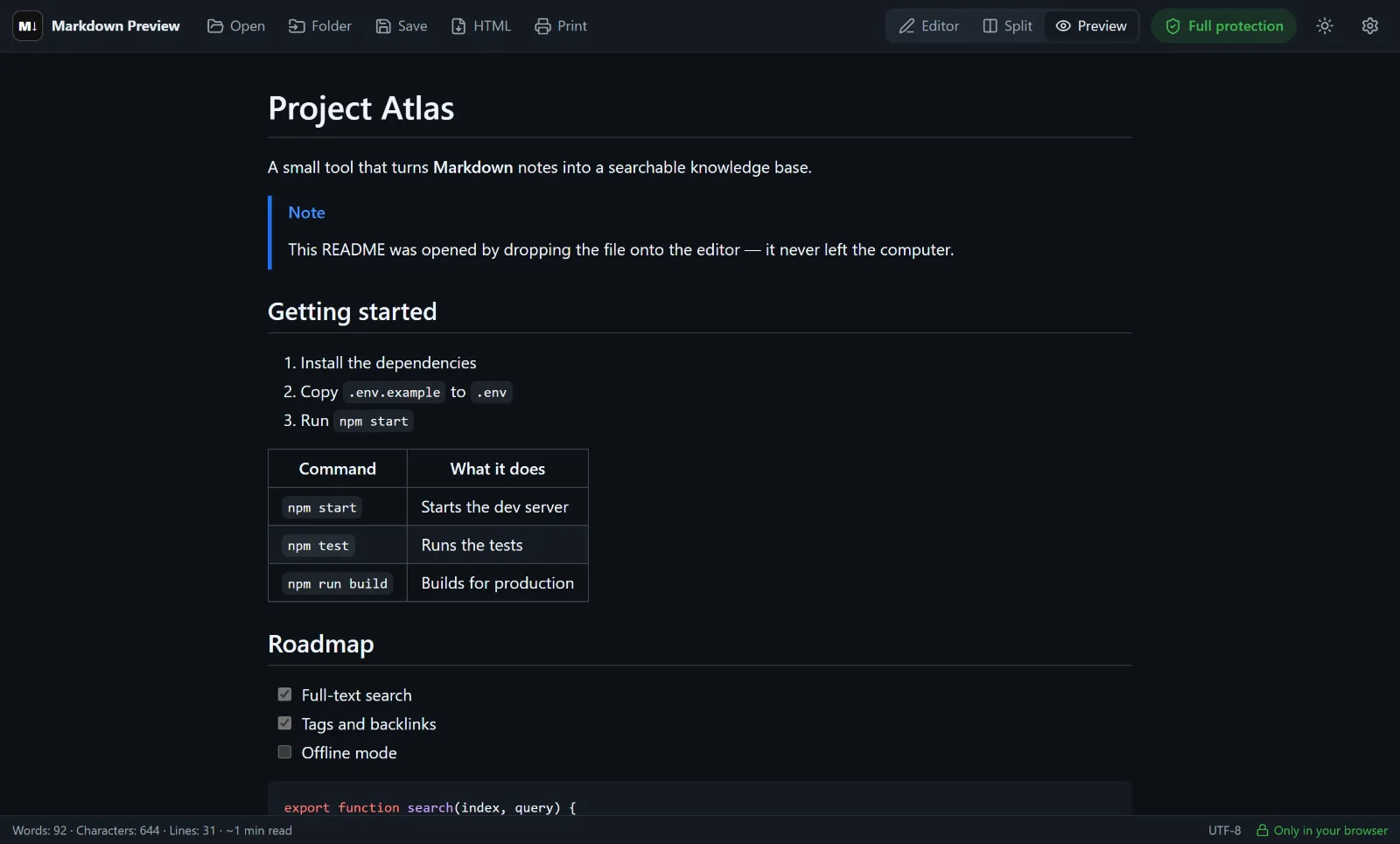
Markdown files are plain text. Open one in Notepad or a code editor and you get asterisks, pound signs and pipes where bold text, headings and tables should be. A Markdown viewer renders that text into a readable page, just like GitHub shows a README.
Markdown Preview Editor works as a free online Markdown viewer. You open the file in the browser, switch to preview mode and read. Nothing to install, no account, and the file stays on your computer.
What is a .md file?
A file ending in .md (sometimes .markdown) is a text document written in Markdown — a simple formatting syntax. # Title becomes a heading, **bold** becomes bold, and a few pipes make a table. You will find .md files everywhere: README files on GitHub, documentation, notes from Obsidian, exports from chat assistants and knowledge bases.
Any text editor opens them; only a Markdown viewer shows the formatting. If you want to learn the syntax itself, keep the Markdown cheat sheet at hand.
How to open a .md file online
- Open the editor. Go to the online editor — it loads in a second.
- Add your file. Drag the
.mdfile onto the editor area, or click Open (Ctrl+O,⌘Oon a Mac). Several files at once or a whole folder work too: each document opens in its own tab. - Switch to preview mode. Click Preview in the header to read the document full width. Split shows the source and the result side by side if you want to edit.
- Save or export if needed. Save the file as
.md, export a self-contained HTML page or print it to PDF.
The viewer accepts .md, .markdown, .mdown, .mkd, .mkdn, .mdx and .txt files.
What the viewer shows
The viewer renders GitHub-Flavored Markdown, so documents look very close to how GitHub displays them:
- headings, lists, links, quotes and horizontal rules;
- tables with column alignment and task lists with checkboxes;
- code blocks with syntax highlighting;
- footnotes and GitHub-style alerts (
[!NOTE],[!TIP],[!WARNING]); - math formulas written in LaTeX;
- Mermaid diagrams — flowcharts, sequence diagrams and more.
Links between open .md files switch tabs, so a folder of documentation reads like a small website.
Images and links
Relative images such as images/diagram.png are shown when you open the whole folder, or drop the images together with the document. The editor resolves the paths from the files you dropped.
Images, audio and video from the internet are not loaded by default, and links are inactive until you allow them. This is on purpose: opening a file from an unknown source should not contact other servers. You can allow external images, media or links in the protection panel with one click.
Your file stays on your device
Many online viewers upload the file to a server to render it. Here the file is read by your browser and rendered right in the tab — it is not sent anywhere. Documents are kept only while the tab is open, unless you turn on Remember documents in the settings.
So the viewer is a good fit for internal documentation, drafts, contracts and anything else you would rather not upload.
Limitations
- It is a web page, so it can’t become the default app for double-clicking
.mdfiles in Windows or macOS. Drag the file onto the page or use Open. - Files are opened from your device only. To view a Markdown file from GitHub or another website, download it first or paste its text into the editor.
- A long document with many diagrams needs a moment longer to render, since every diagram is drawn in the browser.
Prefer a side-by-side editor with live preview? Read how to preview Markdown online, or go back to the Markdown editor home page.
Frequently asked questions
How do I open a .md file?
Open the online Markdown viewer and drag the .md file onto it, or click Open. Switch to Preview to read it formatted. No installation or account is needed.
Is the file uploaded to a server?
No. The file is read and rendered in your browser. It never leaves your device and is not stored unless you enable Remember documents.
Can I view a Markdown file with its images?
Yes. Open the whole folder or drop the images together with the .md file. Relative image paths are resolved from the dropped files.
Does the viewer work on a phone?
Yes. On a phone, use Open to pick the file, then switch to preview mode. The layout adapts to small screens.
Can I convert the file after viewing it?
Yes. Export it to a self-contained HTML file, or print it to PDF — see Markdown to PDF.