
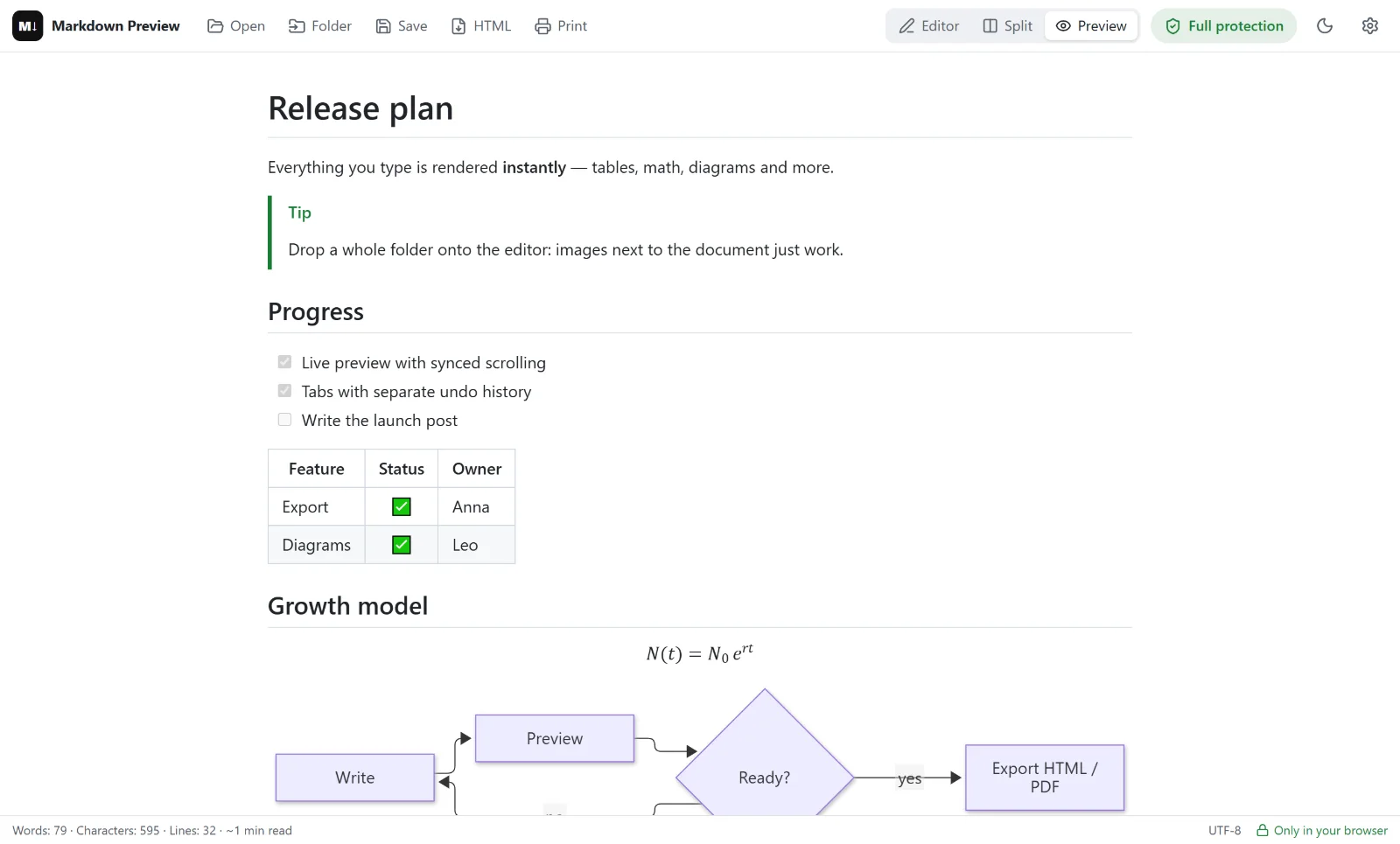
You wrote a README, a report or meeting notes in Markdown, and now someone wants a PDF. Markdown Preview Editor converts Markdown to PDF right in the browser: open the file, check the preview, save it as PDF. There is no upload, no sign-up and no watermark.
The PDF is made by your browser’s print function, the same engine that prints web pages. So the result matches the preview: what you see on screen is what you get on paper.
How to convert Markdown to PDF
- Open your document. Open the online editor and drag the
.mdfile onto it, click Open, or paste the text. - Check the preview. Tables, code, formulas and diagrams are rendered as you’ll see them in the PDF. Fix anything in the editor on the left.
- Click Print (or press
Ctrl+P,⌘Pon a Mac). Only the rendered document is printed — no toolbar, no editor. - Choose “Save as PDF” as the destination and click Save.
That’s all. Every file follows the same four steps: open, check, print, save.
What ends up in the PDF
- headings, lists, quotes and links;
- tables with alignment and task lists;
- code blocks with syntax highlighting;
- math formulas rendered with KaTeX;
- Mermaid diagrams — flowcharts, sequence diagrams, Gantt charts;
- local images you opened together with the document.
The PDF is printed on white paper with dark text even if you work in the dark theme — the editor switches the preview to the light theme for printing.
Settings for a clean PDF
A few options in the print dialog make a big difference:
| Setting | Recommended | Why |
|---|---|---|
| Destination | Save as PDF | Creates a file instead of printing |
| Margins | Default | Comfortable reading; Minimum fits more text |
| Headers and footers | Off | Removes the date and page address from the edges |
| Background graphics | On | Keeps code block backgrounds and table stripes |
| Paper size | A4 or Letter | Whatever your readers use |
The PDF contains real text, not a screenshot, so it stays selectable and searchable.
Why convert in the browser
Online converters usually upload your file to their server. Here the document is rendered in your browser tab and saved directly to your computer — it is never sent anywhere. That matters for contracts, internal docs and drafts you’d rather keep private.
It is also free, with no limit on files or pages.
Limitations
- Page breaks are chosen by the browser. Markdown has no page-break syntax; start large sections with a
##heading and keep tables compact. - Custom PDF templates and cover pages are not available; page numbers depend on what the print dialog offers.
- Images from the internet appear only if you allow external images in the protection panel; otherwise they are not loaded and not printed.
- For books, academic papers or automated builds, a command-line tool like Pandoc gives more control — see how to convert Markdown to HTML.
Need an HTML file instead? Click HTML next to Print to export a single self-contained page. Or return to the Markdown editor home page.
Frequently asked questions
How do I convert Markdown to PDF for free?
Open the file in the online editor, click Print and choose Save as PDF. It’s free, with no sign-up and no watermark.
Will formulas and Mermaid diagrams be in the PDF?
Yes. Formulas and diagrams are rendered in the preview and printed exactly as shown.
Is my file uploaded to convert it?
No. The document is rendered and printed in your browser; nothing is sent to a server.
Can I convert several .md files at once?
Open them all — each gets its own tab — and print them one after another. There is no batch conversion into a single PDF.
Why is the PDF white if I use the dark theme?
Paper is white, so the preview switches to the light theme while printing and returns to dark afterwards.